By Magnet Quill editorial team · Last verified [date] · Current release [tag]
Install with winget
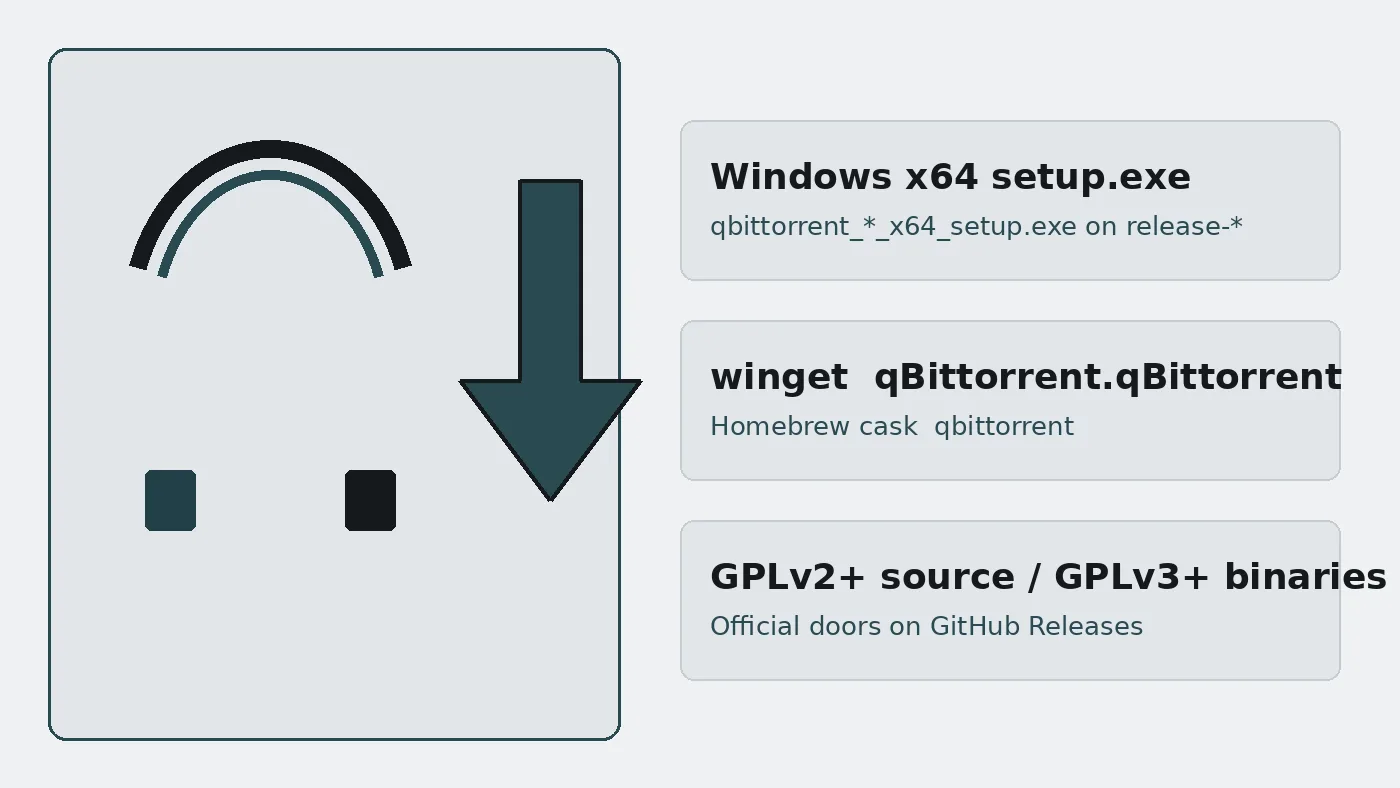
qbittorrent as qBittorrent is a local BitTorrent client. Package id in Windows Package Manager is qBittorrent.qBittorrent.
winget install -e --id qBittorrent.qBittorrentThat identifier sits in microsoft/winget-pkgs. Related: how to install winget, winget guide, for this computer.
Install with the GitHub setup
Open GitHub Releases for a non-prerelease release-* tag. Download qbittorrent_*_x64_setup.exe and run it. That file is the primary stranger-safe path when package managers are blocked.
Skip Softonic-style wrappers that rename the setup. Match the asset name character for character. Map: releases, download safely.
After setup
Open the Start Menu shortcut. Set Tools → Options → Downloads to a disk with space. Add one trusted magnet or torrent. First-hour list: installed. Narrative: first run.
lt20 builds
An lt20 setup may sit on the same tag. Take it only when you need that libtorrent line. Default desks should stay on the plain x64 setup.
Update and uninstall
Upgrade with the same door you used. Winget upgrade for the id, or a newer setup from Releases. Uninstall from Windows Settings → Apps when you retire the client. Guide: update and uninstall.
Pillar: qbittorrent home.
Why the official door matters
Labs waste hours when someone grabs a renamed installer from an advertising mirror. Matching the GitHub asset name keeps SmartScreen and Gatekeeper conversations shorter because the publisher details line up with what your runbook already printed. Winget and Homebrew help when those catalogs are allowed, and they still resolve to the same upstream project on the review date.
Write the door you used beside the machine name. After imaging season, prove one magnet or torrent add before you call the desk ready. That single prove step catches vanished AppImages, half-finished dmg drags, and adware shortcuts that reappear from old browser downloads.
Shared rooms should keep a spare copy of the current Windows setup on trusted media when the Store is flaky. Mac rooms should document whether brew or the dmg is the blessed path. Linux rooms should pin the AppImage folder path so updates replace one file.
Everyday controls after install
Set the default save path away from a nearly full system volume when you can. Note the listen port under connection options. Enable UPnP or NAT-PMP only when your network policy allows it. Speed limits keep shared lines usable during meetings.
Optional Web UI access needs a strong password before you flip the switch. Remote access across the open internet needs more than the default checkbox. Treat Web UI as an advanced habit after the desktop window already works.
Categories and tags help when many torrents share one disk. Start with a short list. Rebuild fancy rules only after a week of stable transfers. RSS habits can wait until the basic prove-one-add loop is boring.
Support notes for tickets
Ask for the filename or package id, the approximate install date, and whether a VPN or firewall changed during the complaint. Vague reports that only say downloads feel slow waste a day. Trainers should keep a quiet prove-one-magnet checklist instead of demoing on a huge busy swarm.
Rollback plans need a previous setup on trusted storage, an uninstall note, and an owner for the hash list if your organisation verifies signatures. Rollback fails when the only old copy sat on a retired laptop.
Internal runbooks should quote winget id the client.the client, brew cask the client, and the Releases URL without marketing adjectives. Staff skim under stress. Five clear boxes beat a long essay.
Related pages
Return to the qbittorrent home for the install panel. Asset chooser: [releases](/the client-releases). Repo map: [the client GitHub](/the client-github). Safe habits: [download safely](/the client-download-safe). Computer chooser: [for this computer](/the client-for-this-computer).
Frequently asked questions
How do I install qbittorrent on Windows?
Run winget install -e --id qBittorrent.the client or run the client_*_x64_setup.exe from GitHub Releases. If winget is missing, install App Installer from Microsoft first, reopen Terminal, then retry the same id. Prefer official GitHub Releases or the verified package doors, then prove one transfer after install finishes.
Setup exe or winget?
Both deliver qBittorrent from the upstream project. Winget uses package id the client.the client. Manual installs use the client_VERSION_x64_setup.exe on release tags. Pick one door and write it on the ticket. Prefer official GitHub Releases or the verified package doors, then prove one transfer after install finishes.
Do I need an account?
No. qBittorrent is free under GPLv2+ source and GPLv3+ binaries. You can install and use the BitTorrent client without registering. Optional donations on the project site are separate from the install path. Prefer official GitHub Releases or the verified package doors, then prove one transfer after install finishes.